Latest Articles

  • Ever Wondered What This Tiny Cylindrical Thing At The End Of Your Charger Is For?

    Have you ever noticed the small cylindrical module near the end of your charger? If you haven’t noticed yet, now just take a look at the end of your charger or device plug, it must have some sort of plastic cylinder near to the end of the cable, right?

    What Is That Little Cylinder on the Cable of Your Charger?
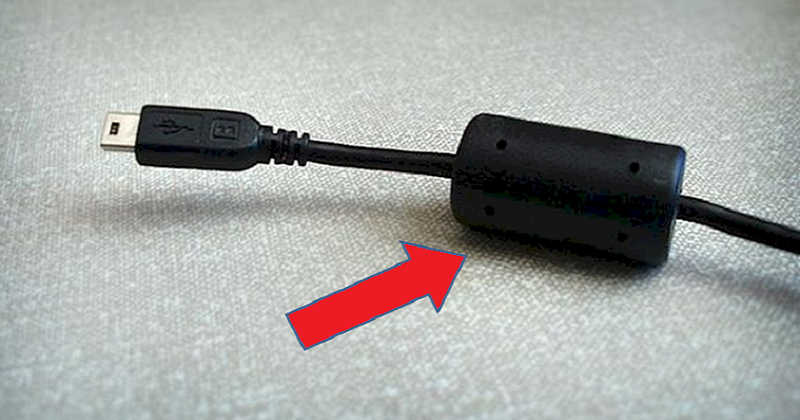
     

    Well, it might look like a useless addition, but without this little thing, your lappy wouldn’t be able to function properly. Here’s why.

    That little cylinder is called a Ferrite Bead.

    The cylindrical device is known as a ferrite bead, which is nothing but an inductor (passive electric component) that suppresses high-frequency noise in electronic circuits.

    The ferrite bead isolates your laptop from electromagnetic noise, either from the waves that are picked up by the wire or from the existing noise in the AC-DC converter or the AC line.

     

    While you find this cylindrical module common for laptop cords or other electronic devices such as printers, you won’t find this extra piece on other chargers like that of a cell phone. This is because unlike cell phones or other devices that need to be charged (i.e., your iPad or tablet), laptops tend to have many moving parts working at once. This can create a lot of chaos and disorder if the parts aren’t working together, even capable of producing radio frequencies. The case around the laptop charger dulls those vibrations and stops them from causing any interference.
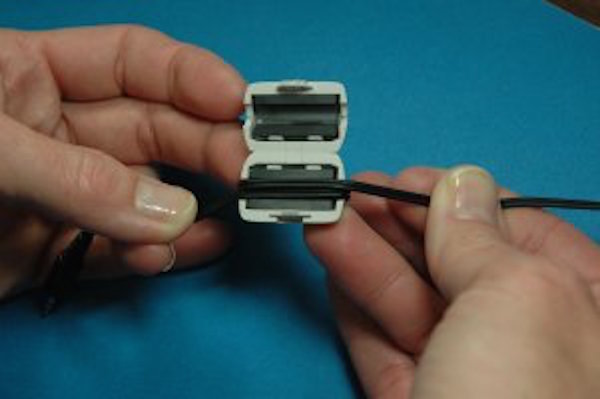
     

    Ferrite beads are made of a hollow disc, an iron oxide material with magnetic properties. It helps to prevent the wire behave on over floating current like aerials. As a result, all this metal wire can potentially serve as an antenna by absorbing or emitting any radiation while passing current around it. Without this ferrite bead, the radiation emitted by the wires could cause interference with other electronic objects around them which act as receptors of this radiation, causing, for example, noise in speakers.

    This is why you find those small cylindrical modules at the end of the cables.


    Read more

  • Google’s New “My Activity” Page Reveals Everything You Do Online

    As we already know giant companies like Google track their user’s online data. Recently google introduced a new site that lets you see the recorded data for yourself. So, How to know exactly how much a company like Google knows about us?

    Google’s New “My Activity” Page Reveals Everything You Do Online

    Google’s new My activity page actually lists everything that is collected while you browse online using Google or its services. Google’s new My Activity page also shows all the search performed using various devices since it is linked to your Google account.

    Google said in a post “Your searches and browsing history are saved to your Google Account if Web & App Activity is turned on. When Web & App Activity is on, you may get better search results and recommendations across Google services.”

    Google had also shared what type of information it saves which includes searches and other things you do on Google products and services, like search and Maps. It even saves your connection information that includes location, language and whether you use a browser or an app. It also keeps information regarding ads that you respond to by clicking the ad itself or purchasing something on the advertiser’s site. It also records your IP address.

    Apart from all this Google also keep records of all your chrome browsing history, Websites and apps you use and the data they share with Google. Your activity on websites and in apps that use any Google service. Google said “When Web & App Activity is on and you check the box next to “Include Chrome browsing history and activity from websites and apps that use Google services,”

    Users can now control what’s being saved by google, and can manage them according to their wishes. They can delete their past searches and browsing activity etc. Google said: “You’re in control of what’s saved, and you can delete your past searches and browsing activity or turn off Web & App Activity at any time.”

    My Activity is a really a great tool for anyone with a Google account. However, the important point to be noted here is when you use all these free apps and services of Google, you are actually giving up your personal data to do it.

    SOURCE:

    http://techviral.com/googles-new-activity-page-reveals-everything-online/


    Read more
  • Finding Free Wi-Fi

    Multiple websites and smartphone apps can help you identify free Wi-Fi in your area, and the list will surprise you — it also keeps getting longer. You need to perform some advance research if your goal is to hang out wherever you can get some free downloads.

    Use one of the many websites or smartphone apps that provide free Wi-Fi listings:

    Websites:

    Smartphone apps:

    SOURCE:

    - http://www.ehow.com/how_4876806_wifi-access-anywhere.html

    Read more
  • Improve Your Home’s Wi-Fi Signal in Five Minutes

    Wi-Fi is just radio waves, and many things can cause interference. But a strong Wi-Fi signal can give you faster performance and better coverage distance, so it’s important to properly position and configure your router for optimal signal strength. I’ll show you how; it just takes a few minutes.

    Point the Antenna Up

    Routers generally have physical antennas that are adjustable. The antenna often comes pointed horizontally to fit the router inside its box. For maximum signal strength, position your router’s antenna vertically, pointing straight up. If you have two antennas, you won’t get better performance by pointing them in different directions.

    Position Your Router Properly

    Consider where you put your router. If you have a large home or office, place the router close to the center to maximize coverage. If you position the router at one end of the building, you may have poor (or no) signal at the other end.But keep in mind that if you already have your router positioned at one end of your home and the signal strength is just fine on the other side, you don’t need to move it.

    For maximum coverage, the router should also be high up. Placing it on the floor is the worst location possible – place it on a high shelf, if possible.

    Don’t place the router on or near large metal objects, such as metal shelves or filing cabinets. These can block the signal. Metal or stone walls can also block Wi-Fi, while wood and plaster walls won’t cause any problems.

    You might be able to root out other sources of interference. For example: microwave ovens, 2.4 GHz cordless phones, and 2.4 GHz baby monitors all have the potential to interfere with a Wi-Fi signal. I’ve personally experienced a Wi-Fi signal to my laptop dying every time a microwave oven was turned on. The microwave oven was in direct line-of-sight between my  laptop and the router. The solution? Move any one of them so that the microwave isn’t in between. If you get interference from a cordless phone, you might want to purchase newer 5.8 GHz cordless phones; these  workon a frequency band other than Wi-Fi and don’t cause any interfere.

    Choose the Best Wi-Fi Channel

    If you’re in an area with many different Wi-Fi networks — such as an apartment complex or even just a house close to other homes — your neighbors’ Wi-Fi networks are probably interfering with yours.

    To minimize this, move your router further away from the other Wi-Fi access points, if you can. For example, if you’re in an apartment and have a router in the corner of your room, your neighbor’s router might be right on the other side of the wall.

    But the best thing you can do is switch to a different Wi-Fi channel. You access this option on your router’s settings page — check your router’s instruction manual for instructions on how to do that. (If you don’t have the instruction manual, you can almost certainly find the instructions online.) Locate the Wi-Fi channel option in the router’s web interface and change it to a different channel with less interference.

    It might take a little experimentation to find the best one, but you can get help choosing a Wi-Fi channel using the Wi-Fi Analyzer app for Android phones and tablets, which will monitor the Wi-Fi networks near you and recommend the least-cluttered Wi-Fi channel for your network. Unfortunately, similar apps aren’t available for iPhone or iPad due to the limitations Apple places on app developers.

    That’s it — all you really have to do is position your router well and choose the ideal Wi-Fi channel to optimize your network. Of course, buying a new router that supports modern, improved Wi-Fi standards may also offer you a signal strength and speed boost.


    Read more
  • Don't Buy Software: Do Everything for Free

    Buying software is a sucker bet.

    It's the old adage: Why buy the cow when you can get the milk for free? When it comes to software, there's almost always a free alternative to, er, whatever is the app equivalent of a cow.

    Take image editing. If you want to fine-tune your photos, the go-to option has long been Photoshop -- or at the very least, Adobe Photoshop Elements. But those programs cost money, which is okay if you want bleeding-edge features and the benefits of technical support.

    But Photoshop is also overkill for many of us, especially when there are so many free alternatives. Let's take a look at some of the no-price options for some common software needs.

    Image editing

    As noted above, Photoshop is far from your only choice when it comes to image editing. If you're looking for that level of photo-manipulation power, with filters and special effects and the like, you have two pretty impressive options: GIMP and Paint.net. The former comes closest to matching Photoshop's capabilities, while the latter feels closer to Microsoft's own Paint program -- on steroids and wearing a fancy new suit.

    If you'd rather not monkey around with software at all, there are several good image-editing tools that reside right in your Web browser -- no installation required. Autodesk Pixlr, for example, lets you create images from scratch or upload them from your PC, then crop, rotate, smudge, and so on. PicMonkey also supplies a broad range of editing tools, though the basic (read: free) version is somewhat limited. If you want advanced touch-tools, more fonts and effects, and other extras, there's a nominal monthly fee ($2.75).


    Video editing

    Free video editors aren't nearly as abundant as, say, free office suites. That's in part because video editing can be very complex, involving advanced features as well as compatibility with lots of file formats and standards. Many, if not most, of the freebie editors out there are just stripped-down versions of their commercial counterparts, and not very useful overall.

    Microsoft's Windows Movie Maker is free but limited, while Apple's iMovie delivers a somewhat more robust set of tools to Mac users. But if the video you shot is located on your phone or tablet, why not edit it right there? Why go to all the hassle of transferring it to a desktop, especially if it's just going to end up back online (Facebook, YouTube, etc.) anyway?


    SOURCE:

    - http://www.ehow.com/how_12343318_dont-buy-software-everything.html


    Read more

Latest Articles

Most Popular